Greg
-
Posts
2,936 -
Joined
-
Last visited
Everything posted by Greg
-
I suggest using the latest version of Mod Organizer 2 these days. Mod Organizer 1.3.11 hasn't been updated in a long time.
-

Mod organizer 2 doesn't recognize skyrim.esm
Greg replied to sixstrings's question in Mod Organizer Support
Mod Organizer should use the masters (Skyrim.esm, Update.esm, Dawnguard.esm, Hearthfire.esm and Dragonborn.esm) in the Skyrim Special Edition\Data folder by default and these should appear at the top of the right pane (not in the left pane). The one exception is that if you've cleaned the masters and installed the cleaned masters as mods, you should see these mods in the left pane but I digress... The first thing I'd check is to run Mod Organizer. Select the Plugins tab in the right pane so you're seeing all the masters and plugins. Look at the bottom of the right pane and you should see a textbox. If there's any text in that textbox, delete it to remove the filter. I think the right pane has a red border if the filter is active with the newer versions of Mod Organizer to make it stand out like a sore thumb. You may also see a brush or flashlight icon to the far right of the textbox that you can click to clear the filter. If it isn't a filter, click the wrench and screwdriver icon at the top to open the Settings dialog. Click the Paths tab and verify the Managed Game path is correct for SkyrimSE.exe. If you are using Mod Organizer in portable mode, verify you have selected the correct profile. If you are using Mod Organizer in instance mod, click the red circle with an arrow to a card icon at the top left (the first icon in the toolbar) to ensure you using the correct instance. -
After adding/deleting mods, sort will fail until re-install MO2
Greg replied to tennesseetuxedo's question in Mod Organizer Support
It's generally best to use the latest version of LOOT on Nexus. The LOOT built-in to Mod Organizer is just a core version and it may not always be the latest version because Mod Organizer and LOOT are not on the same release cycles. -
You can find the change log, list of mods obsoleted, and list of recommended fixes linked from the USLEEP topic on afkmods.
-
bug STEP Skyrim SE Guide v0.3.0b - Official Bug Reports
Greg replied to TechAngel85's topic in Step Skyrim SE Guide
I'm not sure that it's even necessary for Skyrim Special Edition. As I recall the primary purpose of ENBoost was to offload some memory outside the 32-bit Skyrim Legendary Edition process due to the 3GB or 4GB limit on memory available to a 32-bit process. Skyrim Special Edition is a 64-bit process so this limit is no longer present. -
A weird "Protective Warning" Error on Mod Organizer 2
Greg replied to Gothic_Croc01's question in Mod Organizer Support
I don't see the screenshot so I don't know what specifically this is referencing. Just as general advice, you should not install the game, Mod Organizer, or any of the modding tools in C:\Program Files, C:\Program Files (x86) or any other folder protected by Windows. Regular users do not have permission to create or overwrite files in these folders so you'll run into a lot of permission issues. You also should not run Mod Organizer or the game as an administrator because Windows may foobar the permissions -- meaning files may suddenly be owned by the administrator group so you (as a normal user) can no longer access them. -
I believe the root cause of most of your issue is because you installed Skyrim in C:\Program Files (x86). This folder and C:\Program Files are protected so regular users cannot create or modify files in this folder. It's rather unfortunate that Steam defaults the install path to C:\Program Files (x86), but you can find instructions on Steam explaining how to move games to another folder so I would follow these instructions to move Skyrim to a folder that is not protected (say something like C:\SteamApps).
-
If you can't find the records, right click on your patch plugin and select Apply Script. In the popup dialog, scrolling through the script list to select "Report masters" and click OK. In the next popup, check the mod you want to remove and click OK. This script iterates through all the records and lists the records that need to be removed in the Messages pane.
-
I think you should be able to remove it as a master from the patch. but you'll need to remove all records in the patch that override the plugin you want to remove. Once you've removed all records from the patch that reference the plugin, right click the patch and select clean masters. If everything is good, the reference to the plugin should be removed. Once the plugin is successfully removed as a master, exit xEdit and save the patch. As you remove each record, you might check to determine whether you'll need to add the record back to correct other conflicts after you remove the plugin as a master. If you want to resolve any other conflicts, exit xEdit to save the patch first, then re-run xEdit with the cleaned plugin.
-
S.T.E.P Guide - When to enable mods & Manual Cleaning
Greg replied to Tungdil2's topic in Step Skyrim SE Guide
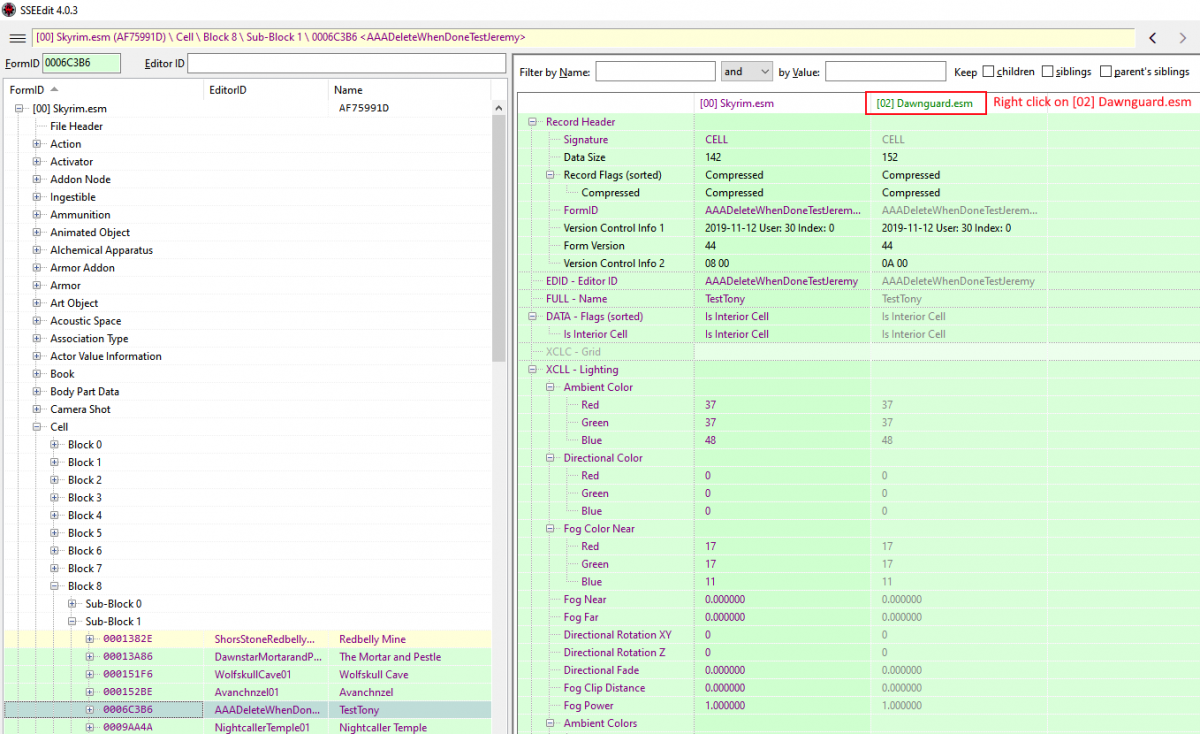
This is a special step for SSE Terrain - Tamriel because the guide instructs you to create an empty mod and copy the downloaded ESM into this folder. This special step is required because Mod Organizer does not automatically activate empty mods. All mods that are installed by clicking Install Mod or double clicking in the download folder are automatically activated. Hopefully this screenshot comes through and clarifies where to click in SSEEdit.
-
SKYRIMSE Vivid Landscapes - Tundra Moss Revised (SE) - Multiple Data folders
Greg replied to joshkes's question in General Skyrim SE Support
In the Optional Files section, install the one named "SMIM compatibility patch". EDIT: When you install the optional file, I think you should select the primary Data folder instead of "high poly mesh(for the same object)/Data" folder. It's just one mesh, but the high poly mesh is about twice as big. -
Yes, use the oldest backup as the original, unmodified master.
-
When I cleaned the master files, the cleaned version were in the Skyrim Special Edition/Data folder and the unmodified versions were in Mod Organizer's Overwrite folder. I handled this by moving the cleaned masters from Skyrim Special Edition/Data into a mod in Mod Organizer, then moving the files in Overwrite back to Skyrim Special Edition/Data and correcting the names by removing the timestamps. You might verify this by looking in Overwrite. if you have a backup folder in there containing files like Dawnguard_20200602112519.esm, these are the original versions of the files and the cleaned files should be in Skyrim Special Edition/Data.
-
Cloning Mods Between Skyrim and Enderal?
Greg replied to IFollowYou's question in Mod Organizer Support
I am not aware of any way to share mods with different games. -
You might toggle bEnableImprovedSnow to see this helps the whiteness. I've never used ENB Helper SE, ENB Lights or Cathedralist ENB so I don't know these may have any effect here.
-
Post the logs on an external site like pastebin and include a link in your post.
-
No, these special instructions are required only for OBSE. The script extenders for the other games load differently and do not require any special handling.
-
If it's not added automatically, you can add it manually. Click the Executable icon at the top left of Mod Organizer Click Add to add a new executable Give it a name like "SKSE" Click the "..." button to the right of path and select skse_loader.exe in the Skyrim folder Click the button to update and OK to close the dialog
-
Perhaps this may seem counter intuitive, but the config path should be Skyrim/Data/SKSE. Although the folder is really in Mod Organizer/mods/skse_1_07_03/Data/SKSE, Mod Organizer uses a virtual file system so SKSE and the game sees the files in the Skyrim/Data folder. In your case, you installed Mod Organizer in the Skyrim folder so you may be running into an issue with the virtual file system not working correctly. I suggest moving Mod Organizer back out to the root of the Games folder (e.g. C:\Games\Mod Organizer). If you're using Windows Explorer or File Explorer, cut the Mod Organizer folder where it is, go back to the Games folder and paste to move the directory entry. After you do this, edit the ModOrganizer.ini file and fix any paths to point to the new location.
-
No, it will not cause any issues if you don't have it since we're only using the meshes and textures. I posted a link to Google's web cache that seems to have the files so you might look for that post.
-
Particle Patch for ENB is unavailable - Can I skip it?
Greg replied to amyrlinengineer's topic in Step Skyrim SE Guide
You might try Google's web cache. -
I always delete before rebuilding these so I know the newly generated files are clean and uncluttered.
-
You should be able to skip this mod for now. I would create an empty named something like "Particle Patch for ENB" to serve as a placeholder so you know where it should be installed once the forum at http://enbseries.enbdev.com/forum/viewtopic.php?t=1499 is back online.
-
bug STEP Skyrim SE Guide v0.3.0b - Official Bug Reports
Greg replied to TechAngel85's topic in Step Skyrim SE Guide
I think the issue is that the game engine supports a limited number of light sources in an area. If this limit is exceeded in any way (such as with a torch or magelight spell), the engine will fail to properly render all of the light sources so you will see light sources turn on/turn off as you change your vantage point in the area. Although this limitation can be increased by splitting the interior meshes, this is very tedious and time consuming for mod authors and it introduces compatibility issues with mods that alter interiors. -
Are you sure the checkboxes are checked for all profiles? The reason I ask is because it may look as if the checkbox apply to all profiles whereas they really apply only to the selected profile.