Leaderboard


Popular Content
Showing content with the highest reputation since 01/12/2026 in all areas
-
I noticed a slight issue with this mod, for which I created a patch. When wielding magic, movement speeds revert to vanilla which is slightly faster than the modded values. The patch I made changes the "NPC_Magic_MT" values to match the values from the mod, so now the movement speed is consistent when wielding magic.2 points
-
https://dyndolod.info#DynDOLOD-3-Alpha Certain things may be incomplete, not work as expected or change considerably between versions. Use the official DynDOLOD support forum to provide feedback https://dyndolod.info/Official-DynDOLOD-Support-Forum Report the actual problem or error message or provide feedback without making unverified assumptions or asking leading questions. For example: "It would be nice if the grass density setting could just be changed in the expert interface when Executing LODGen instead of having to edit the export file." Let me worry about how to implement things. The instructions exist, because that is how things work with xEdit and the LODGen command line tool. I have not yet spend any of my free time to make it more convenient for non experts. If you want to contribute, contribute to https://github.com/TES5Edit/TES5Edit.2 points
-
xavbio's mod page does include screenshots that shows the before and after comparisons. (vanilla textures vs modded textures) Granted STEP's lighting/ENB might affect how the textures looks in game so the colors might differ slightly. I can probably post the comparisons in a bit if it'd help.2 points
-
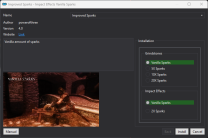
New version released which packages everything into one FOMOD installer.
 2 points
 -
The link is missing the encryption key. You reported that you successfully generated terrain LOD files for seasons. If you installed them correctly, it is up to the DLL of The Seasons of Skyrim SKSE DLL to take care of them showing in the game. I did not say anything about a bug, just that it seems you have a problem with a 3rd party mod based on the available information.1 point
-
thank you soo much, that latest version worked!! debugreport.txt doesnt exist, here are the rest: https://mega.nz/folder/7g9lybqa#BxPBvNH4l61wlB0ROjbxNw1 point
-
This is not my first rodeo. I've done this before over the years. Last time I was in a pickle: I had version like 1.6.640 or something when Skyrim updated to a later version, so then I had to keep things on a lower version. But it seems like Bethesda has not updated the game since 2024. I will follow the guide as well as I can. Wish me luck.1 point
-
Good luck. Latest version of the guide is 2.3 and it is as up to date as it can be. But be aware that some mods have been updated and there are only a few people working on the guide. I have the guide installed and testing mods for v 2.4 and it is working very well. Suggestions: - Mods updated since latest guide release. Read the change logs! - Maybe try Pandora instaed of Nemesis. (not very important since the guide dont mess with animations that much)1 point
-
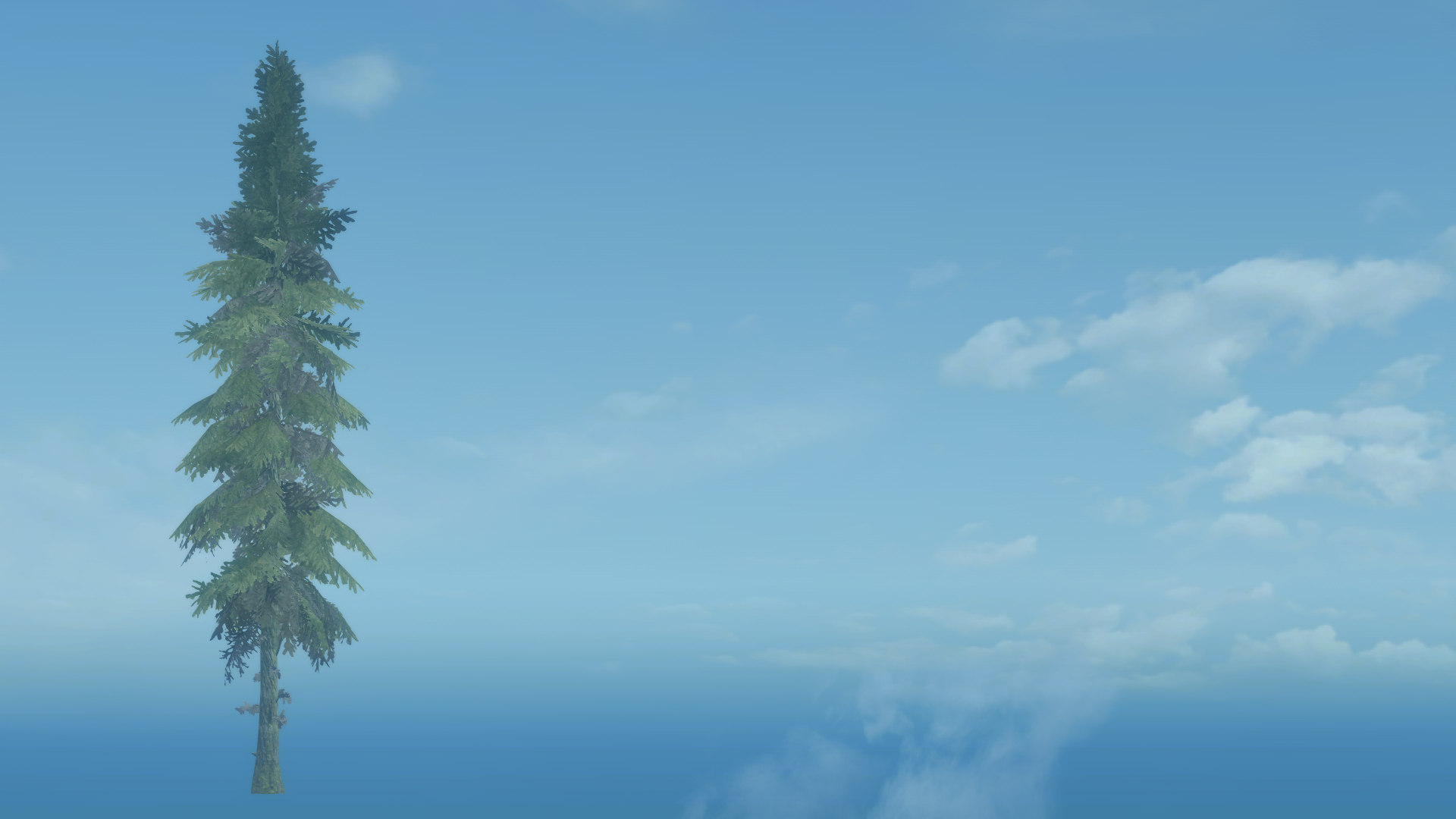
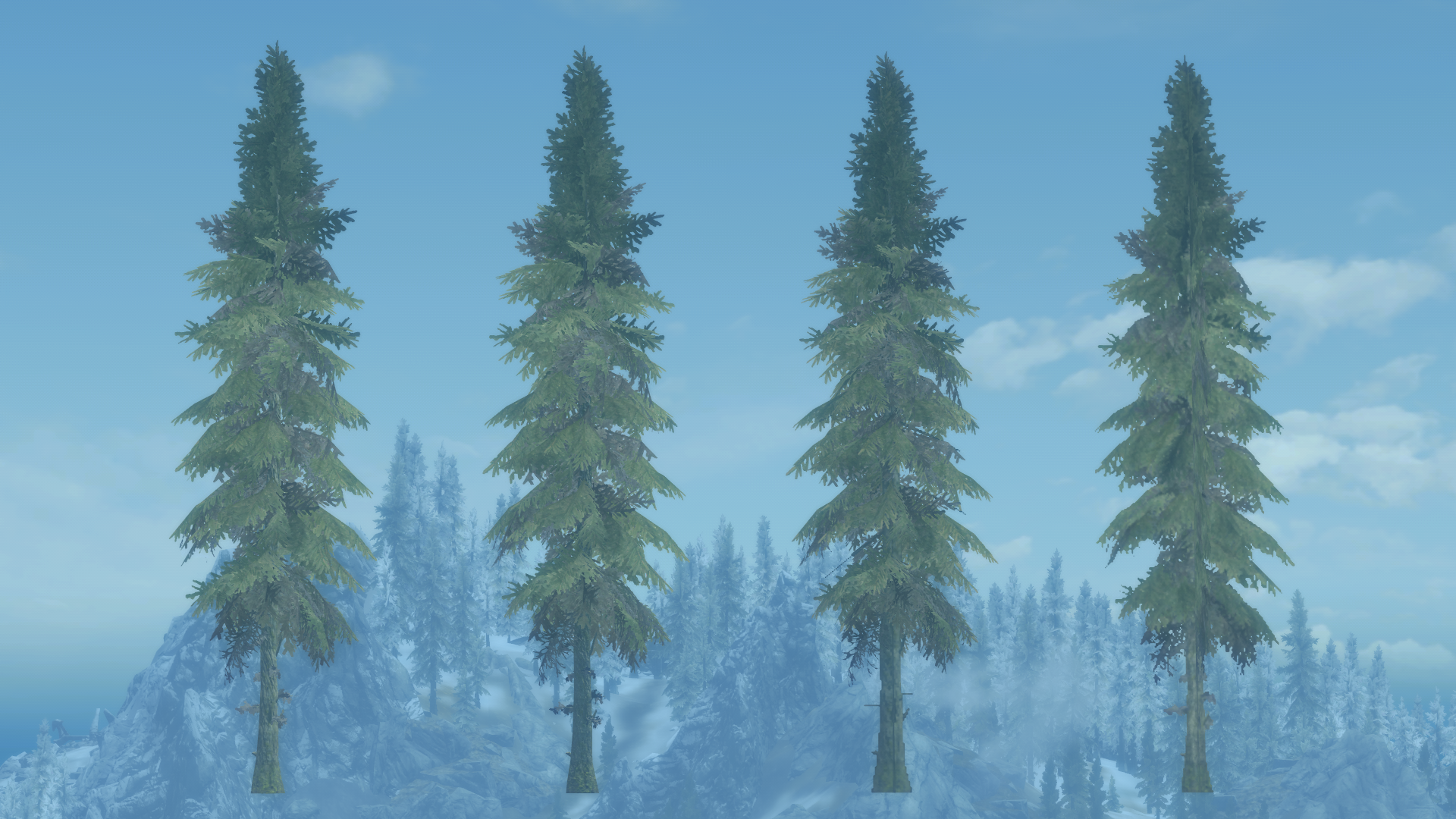
Looks more consistent. You could keep the "PineTree02_branches" that are attached to the bottom of the trunk in the trunk nif so they are rendered as part of the billboard. Visually negligible in this case, but probably good to keep in mind that this is a possibility for other trees with similar features that are more visually obvious.1 point
-
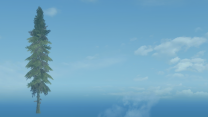
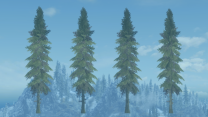
LOD does not support specular (which typically fades on the full model by distance). So the specular channel is removed from the normal map atlas texture by default. I believe the changes you see are due to the glowmap texture in the third slot, which works in conjunction with the softlighting flag. Here is what I see with the "original" 5DD19DB7 assets: Left image just full model with no LOD. Right image: full model, full model used for LOD with full textures, 3D tree LOD model with object LOD atlas texture, Billboard4 This is from a distance without shadows applied. Time is close to noon, sun from top. Here are (hopefully all) the files relevant to this test. https://mega.nz/file/FMYQEDoL#aBwtWDui4eRebrXEsIImdjlB5QUTxXIIP8hY5II9U6E The normal vectors of the triangles on top mostly point to the sides, so they appear darker then the lower triangles in the middle/bottom which have more normal vectors pointing more upwards. All in all, the LOD matches the full model. If you want the top to not be so dark compared to the rest, I suggest to first work on the normal vectors of the full model to be more consistent.
 1 point
 -
Updated today - February 2nd, 2026 version 1.0.11 They added a Jail Door Replacer option. The choices are Halffaces's, SMIM or None. To be safe I picked the "None" option but maybe the SMIM one will work with the guide, I don't know.1 point
-
oh my bad, yeah its fixed good job1 point
-
Verify that the normal vectors, tangents, bi-tangents of the used full model in the game and the LOD models used by DynDOLOD are the same. While you are at it, make sure the UV is inside 0.0 and 1.0 and/or the clamp mode is CLAMP_S_CLAMP_T for LOD models that do not have "noreuv" or "noatlas" in the shape names. If all that is the case, then check the BTOs. It only makes sense to do that for LOD models that neither have "fixednormals" or "spherenormals" in the shape names.1 point
-
The mod link is in the reply1 point
-
Modded -----> Vanilla1 point
-
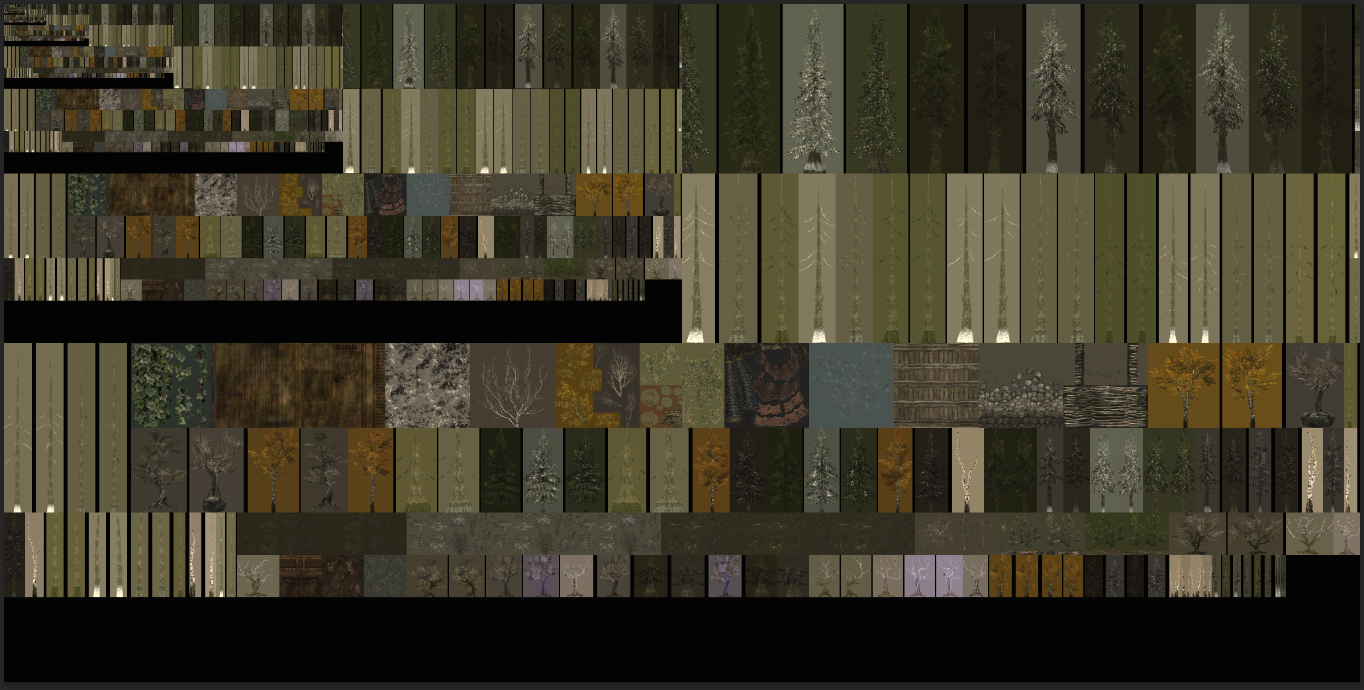
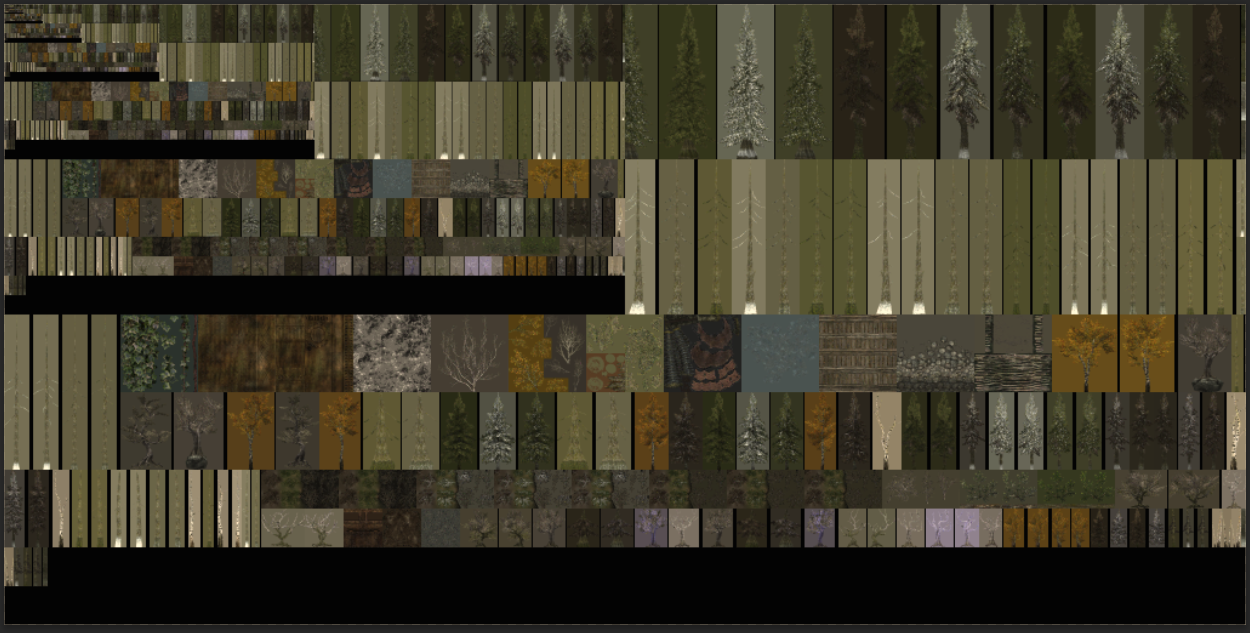
If you compare the 512x512 mipmap of birch03_c.dds to the 512x512 texture on the atlas, you will notice that the black/white transparent parts have been replaced with the average background color as expected and that the alpha channel is a bit more opaque due to the alpha-to-coverage. The 512x512 has been sampled from the 4k mipmap according the the logs. birch03_c.7z1 point
-
https://dyndolod.info/Help/Mesh-Mask-Reference-Rules#VWD-Visible-When-Distant If no LOD model exists, do not check the VWD flag if the rule is supposed to apply. Since no LOD model exists, do not set the VWD flag. See the first example https://dyndolod.info/Help/Mesh-Mask-Reference-Rules#Examples1 point
-
This mod is getting updates and improvements all the time (beta versions on their Discord). I would love to see it in the guide.1 point
-
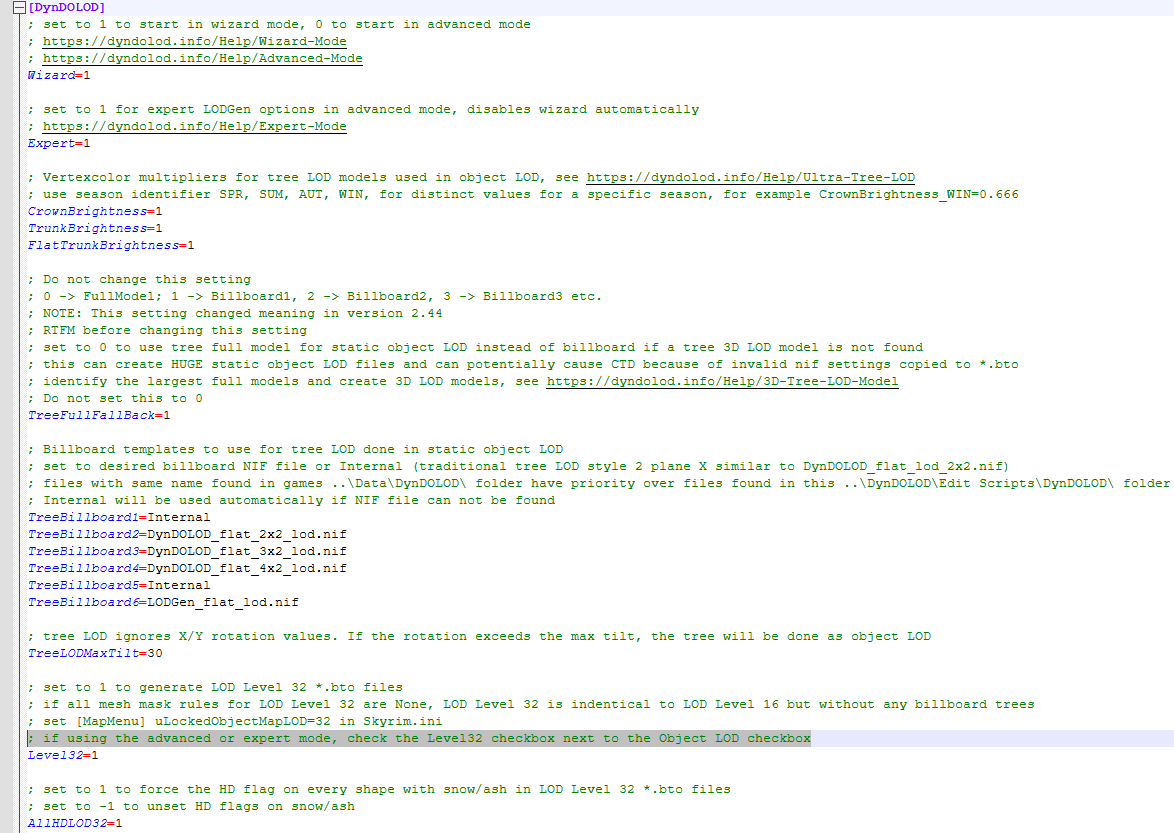
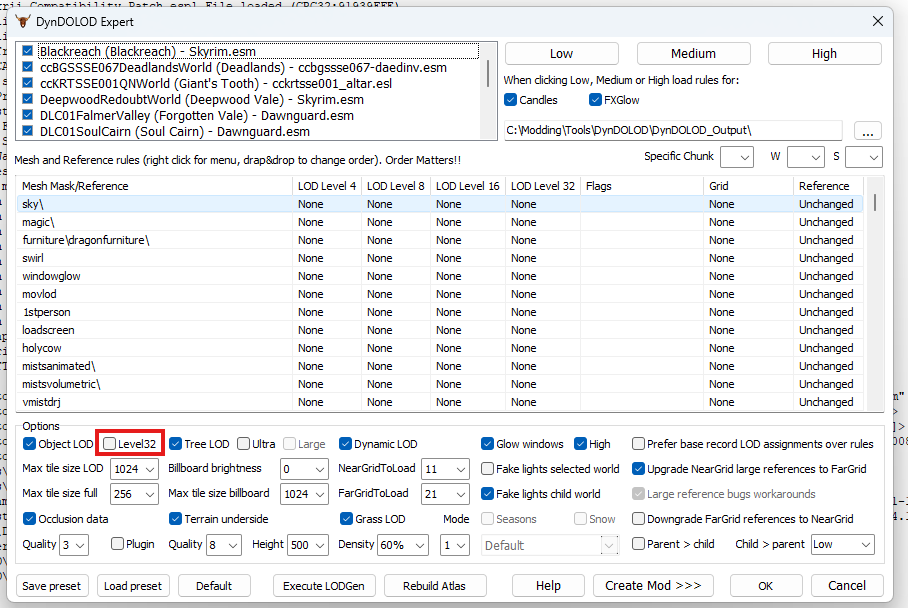
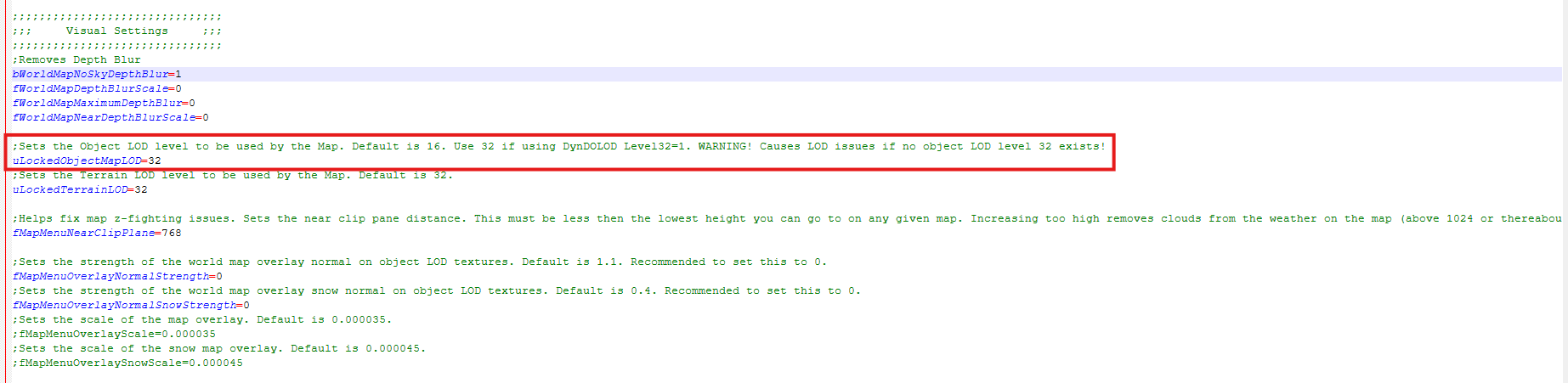
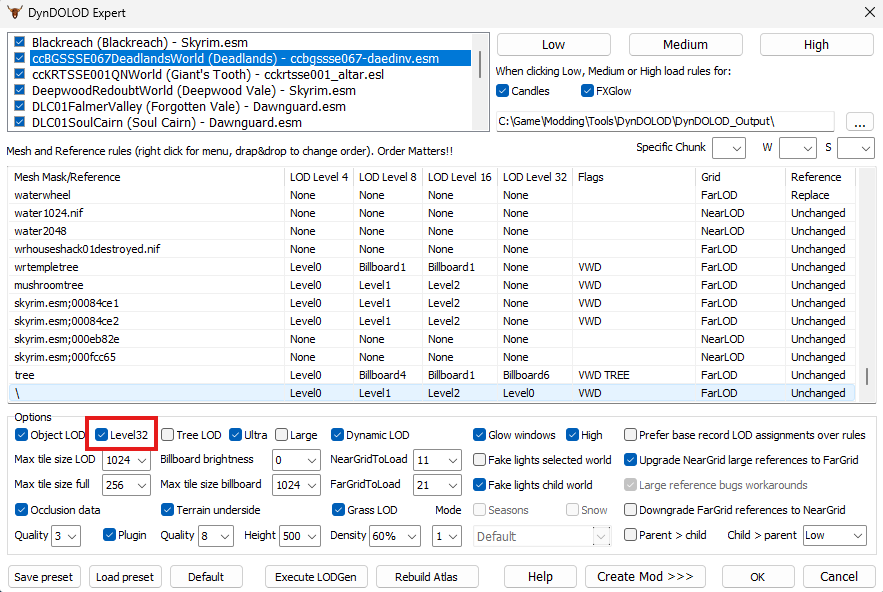
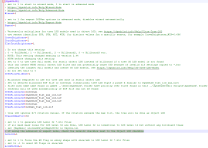
Expert is on (even says Expert at the top of my DynDOLOD in the screenshots above), even Level32=1 is set (screenshot attached) and file for confirmation too. Whilst following the STEP guide changes to the file I didn't really read the line above the Level32 setting (thats on me) that explicitly states to tick the box in the UI if using Expert mode. DynDOLOD_SSE.ini
 1 point
 -
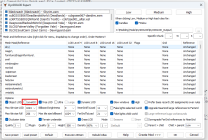
Thanks, that Object lod in exterior shells has given a smoking gun. A clear map of skyrim has the uLockedObjectMap LOD=32 setting. I'm going to regenerate my LODs with this in mind an gen Level32s and see how things go. @z929669Might wanna update the screenshots on the 2.3 guide for DynDOLOD as Level32 isn't ticked by default in DynDOLOD Expertmode. and it's not a shown setting in the current screenshots. So replicating whats ticked doesn't quite cover this. I'll update with how things go but suspect this is the cause of my problems. If not I'll grab the fresh logs.
 1 point
 -
I figured out why my Dyndolod was stopping prematurely! I checked my Windows Event Log and it showed that my Nvidia drivers were crashing during the dyndolod process. I updated my drivers and dyndolod ran without a hitch and displayed no errors! Thank you for helping me and looking at my logs! I apologize if I took undue amounts of your time!1 point
-
Played with this mod installed for a few hours now. It works as intended (playing around with step 2.4 and mods marked for testing) but for me it does not add anything i need. I play with minimum UI/HUD and has the compass set to toggle with X... and too be honest... i dont turn the compass on that much. Perhaps i know Skyrim to well at this point.1 point
-
If the used texture is a "HD LOD texture" the LOD is not going to use the object LOD atlas texture but the full texture in the BTO regardless. This includes mountainslab01.dds and mountainslab02.dds, all textures listed in IgnoreTexture= in DynDOLOD_SSE.INI, textures listed in TNAM and UNAM - HD LOD texture on the worldspace records that have LOD. This makes sense for lots of LOD models using the same full texture as it still combines a lot of models into a single shape. For anything else, if the final UV (after applying scaling and whatnot from the TexGen data for stitched textures) is going to be outside the limits, LODGen might try to re-uv and force it. That takes extra time and is not perfect. It is is better to do this for LOD models properly manually. For best results, all UV coordinates should be positive (that is to the lower right in NifSkope), as close as possible to 0.0, 0.0 and if possible not exceed the max of the stitched texture created by TexGen.1 point
-
Sure! I suppose you get a lot more buggy logs than successful ones to study once people get their issues fixed. I'm probably going to run it again tonight to make some environmental changes, I'll let you know if there were any issues with that run. DynDOLOD_SSE_log.txt DynDOLOD_SSE_Debug_log.txt1 point
-
Just tested it ingame. Looks very good to me.1 point
-
See https://stepmodifications.org/forum/topic/19903-dyndolod-300-alpha-198/page/720/#findComment-288627 https://dyndolod.info/Official-DynDOLOD-Support-Forum#Use-Search1 point
-
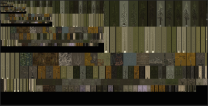
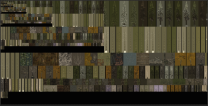
I installed Enhanced Vanilla Trees SE-Basic 2.2.2 with default options and then Pine Branches Redone 8k 4.0 which have black backgrounds. My DynDOLOD_SSE_Object_Report.txt matches yours from the default-modified-8k-Logs.7z for every tree using textures\landscape\trees\treepineforestbranchcomp.dds, so we have the same full and LOD models and texture paths. I have a different CRC32 for treepineforestbranchcomp.dds, since I have the one from the mod with black background and not your modified versions you used back then. My and your debug log from default-modified-8k-Logs.7z both show two lines like this while the object LOD atlas is generated for Tamriel: [PrepareImageColorFix] <Debug: Textures\landscape\trees\treepineforestbranchcomp.dds force False> which means that the black background is being replaced. There are two lines because one version is for the alpha threshold 90 and the other one for 112. As expected, the background color for those branch textures in the object LOD atlas texture are not black anymore since they got replaced by the average color: There is nothing in your debug log that indicates why it would be still black instead. When I run the same setup with your 16k versions overwriting the ones from Pine Branches Redone, their proper background is kept as it is supposed to: Get the latest test version from https://dyndolod.info/Downloads/Test-Versions and run the default setup with textures that have black backgrounds and upload new DynDOLOD log and debug log. Those log lines for PrepareImageColorFix will now show few numbers I am interested in.
 1 point
 -
Discussion topic: Skyrim Character Sheet Display Fixes by 3THANY Wiki Link Some visual fixes for the mod Skyrim Character Sheet that is included in Step guide.1 point
-
You use CS/post processing effects/settings that seem to be different how the lighting works. This version of the NIF uses different normal vectors directions. https://stepmodifications.org/forum/search/?q=DynDOLOD_flat_4x2alt2_lod.nif&quick=1&type=forums_topic&item=199031 point
-
Yes, my mistake, here are the actual logs with those that I posted above (I made a copy just in case): https://drive.google.com/drive/folders/1nGTCkxHWCpn1C7IYpJ2EJeZXH31ZpwF7?usp=sharing I don't have PP, and does it make sense to test without CS if I select a picture for it? I replaced DynDOLOD_flat_4x2alt2_lod.nif and I don't know for what reason, but it worked! https://ibb.co/W4gyL29K But in the end, I didn't understand what the problem was... I've been tinkering with the lodes for the whole day and my head hurts. I want to understand if I made a mistake somewhere or if there is some mistake/problem on the side? What did the file replacement do? Anyway, thank you very much! z929669 thanks too, I'm actively studying your posts here and on nexusmods, thanks for helping the community!1 point
-
Read https://dyndolod.info/Official-DynDOLOD-Support-Forum#Post-Logs which TexGen and DynDOLOD debug logs to also upload when making posts. https://dyndolod.info/Official-DynDOLOD-Support-Forum#Copy-and-Paste-Text Do not post screenshots of the tools, unless it is about visual issues with the user interface ... The debug log - as explained below - typically contains the selected settings and options already. Changing overall brightness of billboards in TexGen or via the DynDOLOD ini settings is not going to change that different viewing angles at the same time of day seem to have different brightness. Test without post processing / CS. You might benefit from the DynDOLOD_flat_4x2alt2_lod.nif I uploaded in this post https://stepmodifications.org/forum/topic/19903-dyndolod-300-alpha-198/page/720/#findComment-288655 If there is no change, also upload a LOD level 4 BTO, like Tamriel.4.-4.-4.bto for example.1 point
-
Have you considered suggesting an ultrawide monitor fix mod in the guide? SSE now "supports" ultrawide monitors but it stretches the UI. Really lazy from Bethesda. I've had success with Complete Widescreen Fix for Vanilla and SkyUI mod and Step 2.3. It has an installer with a bunch of options based on both the monitor ratio and other installed mods. I know this is only necessary for a minority of players but it would be good to note it somewhere as I would consider it essential for such players. If no one on the Step team has an ultrawidescreen monitor then I can do further testing for you. Mine is 3440x1440.1 point
-
Looked trough the compares and must say i agree, Azurite is a bit better.1 point
-
Discussion topic: Leather Armors Retexture SE by xavbio I think this mod might be a good addition since it covers CC leather armors which can fill the gap in the current STEP list. One thing to note this mod does replace the fur armor from Rustic Clothing. This probably isn't an issue since the Leather Armors FOMOD has an option to pick and choose the armors to replace. Other than that there aren't any new conflicts with other mods. Overall I think the designs blend in well with the current STEP armor mods based on the mod page's screenshots.1 point
-
Has the STEP team considered using the weapons/armor textures by xavbio? I think it may be a good alternative to the Amidianborn armors/weapons since the author based his designs on them. I'd say at the very least it's worth looking at the Creation Club (CC) armors/weapons xavbio includes since I don't think Amidianborn covers any of them. xavbio also has Common Clothing Retexture SE as an alternative to Rustic Clothing but I'm not sure if works well with Armor and Clothing Extension which is currently in STEP.1 point
-
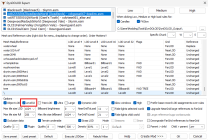
I am using DynDOLOD 3 alpha-198 (released today) and there is a new option which isn't in the guide. `Level32` which is ticked by default and has the description: Should this be used?
 1 point
 -
Do not post obvious nonsense from "AI" that does not have any "I". Read the first post and https://dyndolod.info/Official-DynDOLOD-Support-Forum how to make a useful post in case you have a problem that requires help. Report the actual problem or error message without making unverified assumptions or asking leading questions. LOD billboards are a tree LOD resource. See https://dyndolod.info/Help/Tree-Grass-LOD-Billboards DynDOLOD does add tree LOD for something that is not a "tree". DynDOLOD never replaces full models with LOD billboards. DynDOLOD does not convert everything that looks like "static clutter" to LOD - whatever "static clutter" is supposed to mean. How DynDOLOD actually works is explained in the documentation. In this case, DynDOLOD does, what the mesh rule config file shipping with the mod instructs DynDOLOD to do: Replace the crow references that only show in the active cells with dynamic LOD reference so that the crows show further up to the far grid distance. The dynamic LOD references use the full models. The scripts in the mod enable/disable markers and not the crow references. The crow references or their dynamic LOD replacements use the state of the unchanged markers to determine if crows should show or not. When installing the mod properly with its requirements and then follow the instructions of DynDOLOD, the crows show further away then they do without DynDOLOD. If you remove the mesh rules config file that is shipping with the mod, then DynDOLOD would do nothing to the crow references. They will just show in the active cells. I suggest to read the description/sticky comments of the mod. It requires DynDOLOD 3 for the crows to have LOD. If you have problems with that, then report the problem as explained instead of this nonsense.1 point
-
Discussion topic: Better Big Boat LOD by markuskarttunen1 Wiki Link Found this Mod as I have been looking over things to help with redoing the DynDOLOD again and I think it looks interesting. The examples in the pictures shown are great so I am going to use it and see how it looks as well as the Better Big Boat LOD - Longboat Addon. I think it'll be a nice addition to my ever growing list1 point
-
Added to TRA 1.0 - I am ready for a change of the standard large vanilla UI player bars, large crosshair, and compass. SkyHUD is the best all-around options for those replacements. I have always used SkyHUD through the years in builds and never used iHUD really. But luckily like Mousetick mentioned there is a patch between SkyHUD and iHUD. I would eventually drop iHUD in place of a simple compass hide toggle. I do not see the point of hanging on to iHUD much longer. The one thing I do like about iHUD is the MCM. Lastly, if and when iHUD gets dropped then this can go in Contextual Crosshair1 point
-
Discussion topic: Septim - a coin retexture by Hvergelmir Wiki Link STEP does not have a coin retexture, so here it is.1 point
-
Yes, you would load Assorted Animation Fixes after Run Sprint and Jump SE, Run Sprint and Jump SE covers more jumping aspects. Only one of the fixes Optional: Two-handed Alignment Fix - Female Skeleton requires Open Animation Replacer (OAR). I just skip that one.1 point
-
That is because I am hard-core, dude. But seriously, my patch has been combined with the redux version of Lost Library.1 point