sheson
-
Posts
13,181 -
Joined
-
Last visited
-
Days Won
431
Everything posted by sheson
-
TexGen loads meshes\landscape\grass\ferngrass01a.nif and creates a billboard from it. TexGen adds the textures that meshes\landscape\grass\ferngrass01a.nif defines to the billboard.txt as additional information. DynDOLOD loads meshes\landscape\grass\ferngrass01a.nif and sees that it defines textures\landscape\grass\ferngrass01a.dds. However, DynDOLOD does not find the the texture is being listed in the billboard.txt This can mean the billboard was generated with a different NIF that defines different textures, e.g. it is outdated or something in this process went wrong one way or another. Check the billboard txt what textures are listed and if they make sense. TexGen knows how to split the combined diffuse/normal complex grass texture. Check the preview for such grasses that it worked. cgid/gid contain model nif and position information for grass. The used textures are irrelevant for the cache files. The textures only change how the grass billboards generated by TexGen look.
-
As explained earlier, the first two digits of the form ID are the load order ID of the plugin. If it changes because the load order of plugins is different between the game and loading things with xEdit, it needs to be adjusted to match the desired plugin. Replace the DA of the reference form ID with whatever the 2 hex digits are for the DynDOLOD.esp plugin in xEdit.
-
You can not search by the Editor ID obviously, since you do not have it from your in-game screenshot. As explained and shown in my xEdit screenshot, the Editor ID is what you will find on the reference in xEdit when you look it up. As explained, from the in-game screenshot (open console, clicking the object) you have form ID of the reference. So load up xEdit and look up the reference by its form ID. For example by entering the form ID into the Form ID field top left of xEdit and hitting Enter. Adjust the load order form (the first two digits) in case the load order ID of the plugin changed.
-
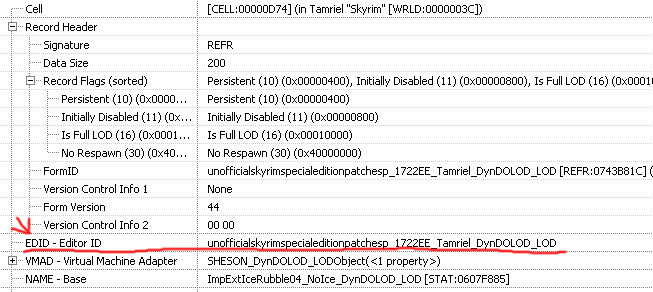
As explained, the Editor ID of such reference is of the format pluginame_formid so it tells us the source plugin and reference for which this LOD reference has been added to the DynDOLOD plugin. The wording is verbatim. The DynDOLOD documentation simply does not re-explain the use of other tools. Refer to the xEdit manual or ask further question how to use xEdit. Every reference in the DynDOLOD plugins has an Editor ID. In this case it should look something like this in the image.
-
I moved the post to the DynDOLOD 3 Alpha thread. The first post explains which log files to upload. The message itself explains which LODGen log file to check in particular. If there was a message pop-up and/or the summary opened it should open/point to the corresponding help page for LODGen: https://dyndolod.info/Help/LODGen 25B Error accessing ... There is a problem reading the mentioned *.NIF. Try to reinstall the file or mod from its download archive. Run the *.NIF through Cathedral Assets Optimizer. If the file opens without error in NifSkope, make a post on the official DynDOLOD support forum and upload the *.NIF or provide a link to the mod etc. Again, check the mentioned log file for details.
-
The billboard txt contains a list of the texture filenames and their CRC32 when the billboard is generated with TexGen. DynDOLOD checks which textures a NIF defines. The texture filename is not listed in the currently installed billboard txt. Typically that should only happen if the NIF changes between the time the billboard was generated and DynDOLOD is executed. Check what texture(s) are listed in one of the billboard txt and also check the TexGen log for warnings or error. It could also mean something went wrong when the billboard was generated.
-
Read the first post which log and debug log to upload when making posts. Test with a new game. If that works, redo the clean save routine.
-
SKYRIMSE SSELODGen Menu Not Opening
sheson replied to WintyFree's question in DynDOLOD & xLODGen Support
Just make sure to not set an output path into game or mod manager folders. -
SKYRIMSE SSELODGen Menu Not Opening
sheson replied to WintyFree's question in DynDOLOD & xLODGen Support
>I can post my SSELODGen Log if needed. Just do. Never hold back information. >-sse -o:"A:\Documents\SSELODGen\Output\" There is a missing space between -sse and -o:, that will not work. Screenshots appear OK. Make sure there is no space after -o: before the " Documents may be a special Windows folder. It is also possible that xLODGen is generally prevented by UAC, Antivr from creating the output folder. Add exceptions for the program to antivr to the executable and/or output folder. Maybe use a local drive in case it is a network or attached storage. Test if the program starts directly from the command prompt with those arguments. In that case check log from mod manager. Make sure to use recent version of mod manager. Test with only the -sse argument. If that works you know the problem is with setting the output folder properly or the tool is not allowed to create it for whatever reason. It could be possible the windows actually opens on a different (disconnect monitor) outside the desktop. Reset xEdit/xLODGen settings by deleting (backup) c:\Users\[username]\AppData\Local\Skyrim Special Edition\Plugins.SSEViewSettings -
https://stepmodifications.org/forum/topic/13451-xlodgen-terrain-lod-beta-93-for-fnv-fo3-fo4-fo4vr-tes5-sse-tes5vr-enderal-enderalse/?do=findComment&comment=224245
-
I moved the post to the xLODGen terrain LOD beta thread. The defaults settings are fine - in particular for the object LOD - unless you have a specific need to change them. BC7 Quick and BC7 Max are -bc q and -bc x options of the TexConv command line tool You can google the texture compression formats to learn about their technical differences. You can also search this thread to find earlier answers. You are not really going to see visual difference in the game between BC7 Quick and Max. But you will certainly notice longer generation times.
-
Why LOD trees disappear without a rendered tree in its place
sheson replied to dizzy_xc's question in DynDOLOD & xLODGen Support
If a mod changes anything about a full model tree and the LOD remains, it is because the tree LOD was not updated for the current load order. Generate LOD for the current load order so it matches. https://dyndolod.info/How-LOD-Works https://dyndolod.info/Help/Tree-LOD -
Why LOD trees disappear without a rendered tree in its place
sheson replied to dizzy_xc's question in DynDOLOD & xLODGen Support
Tree LOD *.BTT files is what puts LOD trees in the world. If a mod changes anything about a full model tree and the LOD remains, it is because the LOD was not generated for the current load order. Generate LOD for the current load order so it matches. https://dyndolod.info/How-LOD-Works https://dyndolod.info/Help/Tree-LOD If the question is why a mod removes full model trees (or why they may be invisible), that is something to be asked the author, comments of the mod in question. -
Not enough information provided to answer question.
-
"When making screenshots of things in the game, open console and click the object in question to show its reference form ID." Without the More Informative Console mod, clicking an object with console open shows only the reference form id of the object and nothing else. "If the form ID points to a DynDOLOD plugin, load the plugin into xEdit and look up the reference. Take note of the Editor ID, which is typically of the format plugniname_formID for the source plugin and reference." The first two (in case of ESL the first 5) digits are the load order ID of the plugin that add the reference. Only ESM, ESP, ESL plugins can contain form IDs. So the first two digits of the reference form ID point us to the plugin which adds the reference. From the More Informative Console screenshot we already know it is DynDOLOD.esp. The instructions specifically say to "look up the reference".
-
Find out the source for these objects as explained at https://dyndolod.info/Official-DynDOLOD-Support-Forum#In-Game-Screenshots If the form ID points to a DynDOLOD plugin, load the plugin into xEdit and look up the reference. Take note of the Editor ID, which is typically of the format plugniname_formID for the source plugin and reference. Let me know if help is required with this step.
-
Read https://dyndolod.info/Help/Grass-LOD#Updating In case only the grass textures have been changed or different settings in TexGen are used, update the grass LOD billboards with TexGen, install the TexGen output, then start DynDOLOD in expert mode, select the desired worldspace and click the Rebuild Atlas button. Then merge the new output with the existing output, overwriting all older files. Read https://dyndolod.info/Installation-Instructions Use 7-Zip to unpack the DynDOLOD Standalone archive into a new and empty 'DynDOLOD' directory that is outside of special OS folders like 'Programs Files' or 'Program Files (x86)', User, Documents, Desktop, Download and also not in SteamApps, game, Data or any mod manager folders. For example C:\Modding\DynDOLOD\. Read https://dyndolod.info/Updating if you plan to update an existing save.
-
You can delete the bugreport.txt. It is the same as before. Always use the latest version. There is no point testing old versions or report problems that might already be fixed. Read https://dyndolod.info/Help/Grass-LOD#Settings In case the grass LOD brightness or color seems off (it might depend on weathers or ENB settings), try different Direct/Ambient settings for grass LOD billboards in TexGen. In addition or alternatively change the GrassBrightnessTop* and GrassBrightnessBottom* settings in ..\DynDOLOD\Edit Scripts\DynDOLOD\DynDOLOD_SSE.ini - those settings help if the color tone is off. Especially the image based lighting effect from ENB has a big impact on the brightness and color tone of the grass LOD. Read https://dyndolod.info/Official-DynDOLOD-Support-Forum#In-Game-Screenshots When making screenshots of things in the game, open console and click the object in question to show its reference form ID. Use Mfg Console or More Informative Console to show additional information when opening the console and clicking an object. If the form ID points to a DynDOLOD plugin, load the plugin into xEdit and look up the reference. Take note of the Editor ID, which is typically of the format plugniname_formID for the source plugin and reference. Note that tree LOD or object LOD does not have a form ID. To determine if something is LOD, toggle LOD on/off with tll in console. In that case, also walk close to an object, so its reference with the full model is loaded in order to gets its form ID. Post the plugin/form id of the out of place objects or if they are object LOD that goes away with tll. In that case try to get closer until the full model loads.
-
Always use the latest version as explained in the first post. If problem persist upload new log, debug and bugreport.txt if it exists. Zip and upload large log files to a file service as explained in the first post.
-
In addition it is also a good idea to read the log messages from DynDOLOD 2.x ("Checking for plugins causing texture z-fighting flicker because of large references bugs") and the Summary from DynDOLOD 3 Alpha ("Large Reference Bugs").
-
See "Updating" in ..\DynDOLOD\Docs\DynDOLOD_Manual.html
-
Do not set the same value to all LOD levels. Set sane values / test with default INIs created by the game launcher. DynDOLOD is not "rendering" LOD or changes how the engine/LOD works. DynDOLOD generates LOD meshes and textures. The game is loading the LOD meshes and textures and renders them. Open some of the generated object LOD BTO files in meshes\terrain\Tamriel\objects\ with NifSkope to check they contain object LOD. If you are using Seasons of Skyrim SKSE, either generate LOD for all activated seasons or disable the LOD switching to nonexisting LOD files in its INI.
-
Start the launcher of the game once to update the Windows Registry information for the game path.
-
Looks like the object LOD distances are very short. Check/Increase their settings https://dyndolod.info/Help/Object-LOD#Settings and https://dyndolod.info/Help/Mod-Configuration-Menu#Settings
-
The bugs, their cause and possible workarounds are well explained since years. https://dyndolod.info/Help/Large-References The flickering is caused by plugins that are not visually compatibility with Skyrim Special Edition. DynDOLOD reports references/plugins causing large reference bugs. This is not an "issue with DynDOLOD". This has nothing to do with a specific DynDOLOD version. The bugs exist and are documented since the end of 2016 shortly after Skyrim Special Edition was released. To not have the distance being a void of nothingness, generates object and dynamic LOD with DynDOLOD. The checkbox is available on the advanced options https://dyndolod.info/Help/Advanced-Mode.